Mostrando entradas con la etiqueta SharePoint 2013. Mostrar todas las entradas

jueves, 29 de septiembre de 2016

Colección de sitios en read-only no se puede desbloquear, en estado "Lock"

Hoy vino un paciente con depresión que no avanzaba en su estado mental y se obsesionaba con lo mismo: estar bloqueado.


Si una colección de sitios de SharePoint aparece en Read-Only y no hay forma de desbloquearla ni mediante la Central de Administración en "Application Management" -> "Site Collections" -> "Site Collection Quotas and Locks" (donde todos los controles aparecen inactivos) ni mediante un comando de PowerShell Set-SPSite con opción "Unlock", existen al menos un par de soluciones eficaces:

1.)
$admin =  new-object Microsoft.SharePoint.Administration.
SPSiteAdministration('http://sitiobloqueado')
$admin.ClearMaintenanceMode()
$site.MaintenanceMode


2.) Utilizando reflection para evitar crear objetos que quizás no estén disponibles en 1.)
$site = Get-SPSite http://urltofreakinlockedsite/
$site.GetType().GetProperty("MaintenanceMode").GetSetMethod($true).Invoke($site, @($false))

jueves, 11 de agosto de 2016

Error al utilizar SharePoint Search. Field or property “TimeZoneId” does not exist. Search API REST no funciona.

Nuestro paciente Search venía con visión borrosa, desorientado y muy confundido, incluso había olvidado lo que tenía guardado en los bolsillos, una especie de amnesia pasajera, directo a psiquiatría.

No paraba de repetir constantemente "Field or property “TimeZoneId” does not exist" cada vez que intentábamos hacer que recordase algo mediante su caja de texto en el buscador.

Además su API REST mediante la cual podríamos darle instrucciones de búsqueda estaba caída, el servicio simplemente no respondía ni mediante una simple llamada a http://<server>/_api/search/query dando un error 400 de error de procesamiento de solicitud.

Pero tranquilos, hay tratamiento, Microsoft ya señaló en su día que la actualización CU Agosto de 2015 requiere un parcheo más exhaustivo al pasar el obligado configurador de productos de SharePoint cada vez realizamos una actualización.

El parcheo es necesario si actualizamos desde antes de Agosto de 2015 a cualquier CU de fecha posterior si queremos evitar que el servicio de Search funcione mal.

Para resolver esto, una vez instalado el CU, hacemos en todos los servidores de la granja lo siguiente:

IISRESET

PSConfig.exe -cmd upgrade -inplace b2b -wait -cmd applicationcontent -install -cmd installfeatures -cmd secureresources

Información en inglés del doctor que conocía estos detalles: 

https://vigneshsharepointthoughts.com/2015/09/15/fix-for-the-search-issue-in-august-2015-cu-for-sharepoint-2013/

Especificación de PSConfig.exe:

https://technet.microsoft.com/es-es/library/cc263093(v=office.14).aspx

miércoles, 10 de agosto de 2016

Search Service: Exception while communicating with Host Controller. Node IndexComponent x for system cannot be deployed on this host due to insufficient physical memory


En esta ocasión a nuestro paciente se le comenzó a ulcerar la cara con un aspecto algo preocupante mientras intentaba aprovisionar una topología de búsqueda en dicho servicio con un Set-SPEnterpriseSearchTopology -Identity $NewSearchTopology:

[DBG]: PS C:\Windows\system32>> 
Set-SPEnterpriseSearchTopology : Topology activation failed. Service call 
AddNodeMapping failed with message 'Exception while communicating with Host 
Controller at ctshpliv01: Node deployment failed [System = E308E7, Node = 
IndexComponent5] [Cause: Node IndexComponent5 for system E308E7 cannot be 
deployed on this host due to insufficient physical memory, 2000 MB required 
but only 1106 MB available.]'

A pesar de lo que pueda parecer este mensaje puede despistar un poco, y aunque lo primero que nos viene a la cabeza es echarle unos cuantos gigas extra a nuestra memoria física, eso no resolverá el problema si observamos el indicador de memoria en Task Manager mientras ejecutamos Set-SPEnterpriseSearchTopology.

La solución vino al adecuar mejor la arquitectura de topología a los recursos de que disponemos, por tanto al reducir el número de componentes de índice que se pretendía crear a la mitad, de ocho a cuatro (finalmente 2 por máquina), el problema fue subsanado y el servicio creado sin problemas. 

Finalmente, la arquitectura creada fue la siguiente:


Y el script adaptado a nuestro caso utilizado el siguiente, el cual fue sacado originalmente de https://blogs.msdn.microsoft.com/chandru/2013/02/18/sharepoint-2013-configuring-search-service-application-and-topology-using-powershell/

El script original presentaba la topología con 8 índices, lo cual dio el actual problema de úlceras faciales que presentamos en nuestro caso.

#==============================================================
    #Search Service Application Configuration Settings
     Add-PSSnapin "Microsoft.SharePoint.PowerShell" -ErrorAction SilentlyContinue
#==============================================================

$SearchApplicationPoolName = "SearchApplicationPool"
$SearchApplicationPoolAccountName = "dominio\cuentaSvc"
$SearchServiceApplicationName = "Search Service Application"
$SearchServiceApplicationProxyName = "Search Service Application Proxy"
$DatabaseServer = "DATABASESERVER"
$DatabaseName = "SEARCH_DATABASE_NAME"
$IndexLocationServer = "C:\Indexes"  
$NoLocalServerName = "server2"

#==============================================================
          #Search Application Pool

                   #==============================================================
                   
Write-Host -ForegroundColor DarkGray "Checking if Search Application Pool exists"
$SPServiceApplicationPool = Get-SPServiceApplicationPool -Identity $SearchApplicationPoolName -ErrorAction SilentlyContinue
if (!$SPServiceApplicationPool)
{
    Write-Host -ForegroundColor Yellow "Creating Search Application Pool"
    #$SPServiceApplicationPool = New-SPServiceApplicationPool -Name $SearchApplicationPoolName -Account $SearchApplicationPoolAccountName -Verbose
   
}
 $SPServiceApplicationPool = Get-SPServiceApplicationPool -Identity "SearchApplicationPool"

#==============================================================
          #Search Service Application
#==============================================================
Write-Host -ForegroundColor DarkGray "Checking if SSA exists"
$SearchServiceApplication = Get-SPEnterpriseSearchServiceApplication -Identity $SearchServiceApplicationName -ErrorAction SilentlyContinue
if (!$SearchServiceApplication)
{
   Write-Host -ForegroundColor Yellow "Creating Search Service Application"    
   $SearchServiceApplication = New-SPEnterpriseSearchServiceApplication -Name $SearchServiceApplicationName -ApplicationPool $SPServiceApplicationPool -DatabaseServer  $DatabaseServer -DatabaseName $DatabaseName 
}
Write-Host -ForegroundColor DarkGray "Checking if SSA Proxy exists"
$SearchServiceApplicationProxy = Get-SPEnterpriseSearchServiceApplicationProxy -Identity $SearchServiceApplicationProxyName -ErrorAction SilentlyContinue
if (!$SearchServiceApplicationProxy)
{
    Write-Host -ForegroundColor Yellow "Creating SSA Proxy"
    New-SPEnterpriseSearchServiceApplicationProxy -Name $SearchServiceApplicationProxyName -SearchApplication $SearchServiceApplicationName
}


 #==============================================================
          #Start Search Service Instance on Server1 -local
 #==============================================================
 $SearchServiceInstanceServer1 = Get-SPEnterpriseSearchServiceInstance -local 
 Write-Host -ForegroundColor DarkGray "Checking if SSI is Online on Server1"
 if($SearchServiceInstanceServer1.Status -ne "Online")
 {
   Write-Host -ForegroundColor Yellow "Starting Search Service Instance"
   Start-SPEnterpriseSearchServiceInstance -Identity $SearchServiceInstanceServer1
   While ($SearchServiceInstanceServer1.Status -ne "Online")
   {
       Start-Sleep -s 5
   }
   Write-Host -ForegroundColor Yellow "SSI on Server1 is started"
 }

  #==============================================================
         #Start Search Service Instance on Server2 liv03
 #==============================================================
 $SearchServiceInstanceServer2 = Get-SPEnterpriseSearchServiceInstance -Identity $NoLocalServerName #liv03
 Write-Host -ForegroundColor DarkGray "Checking if SSI is Online on Server2"
 if($SearchServiceInstanceServer2.Status -ne "Online")
 {
   Write-Host -ForegroundColor Yellow "Starting Search Service Instance"
   Start-SPEnterpriseSearchServiceInstance -Identity $SearchServiceInstanceServer2
   While ($SearchServiceInstanceServer2.Status -ne "Online")
   {
       Start-Sleep -s 5
   }
   Write-Host -ForegroundColor Yellow "SSI on Server2 is started"
 }

 #==============================================================
 #Cannot make changes to topology in Active State.
 #Create new topology to add components
 #=========================================
 $InitialSearchTopology = $SearchServiceApplication | Get-SPEnterpriseSearchTopology -Active 
$NewSearchTopology = $SearchServiceApplication | New-SPEnterpriseSearchTopology


#==============================================================
        #Search Service Application Components on Server1
        #Creating all components except Index (created later)     
#==============================================================

New-SPEnterpriseSearchAnalyticsProcessingComponent -SearchTopology $NewSearchTopology -SearchServiceInstance $SearchServiceInstanceServer1
New-SPEnterpriseSearchContentProcessingComponent -SearchTopology $NewSearchTopology -SearchServiceInstance $SearchServiceInstanceServer1
New-SPEnterpriseSearchQueryProcessingComponent -SearchTopology $NewSearchTopology -SearchServiceInstance $SearchServiceInstanceServer1
New-SPEnterpriseSearchAdminComponent -SearchTopology $NewSearchTopology -SearchServiceInstance $SearchServiceInstanceServer1

#==============================================================
#Search Service Application Components on Server2.
#Crawl, Query, and CPC
#==============================================================

New-SPEnterpriseSearchContentProcessingComponent -SearchTopology $NewSearchTopology -SearchServiceInstance $SearchServiceInstanceServer2
New-SPEnterpriseSearchQueryProcessingComponent -SearchTopology $NewSearchTopology -SearchServiceInstance $SearchServiceInstanceServer2
New-SPEnterpriseSearchCrawlComponent -SearchTopology $NewSearchTopology -SearchServiceInstance $SearchServiceInstanceServer2 


#==============================================================
        #Index Components with replicas
#==============================================================
$IndexLocationServer = "S:\Indexes"

New-SPEnterpriseSearchIndexComponent -SearchTopology $NewSearchTopology -SearchServiceInstance $SearchServiceInstanceServer1  -IndexPartition 0 -RootDirectory $IndexLocationServer
New-SPEnterpriseSearchIndexComponent -SearchTopology $NewSearchTopology -SearchServiceInstance $SearchServiceInstanceServer1  -IndexPartition 1 -RootDirectory $IndexLocationServer 
New-SPEnterpriseSearchIndexComponent -SearchTopology $NewSearchTopology -SearchServiceInstance $SearchServiceInstanceServer2  -IndexPartition 0 -RootDirectory $IndexLocationServer 
New-SPEnterpriseSearchIndexComponent -SearchTopology $NewSearchTopology -SearchServiceInstance $SearchServiceInstanceServer2  -IndexPartition 1 -RootDirectory $IndexLocationServer 

#==============================================================
  #Setting Search Topology using Set-SPEnterpriseSearchTopology
#==============================================================

Set-SPEnterpriseSearchTopology -Identity $NewSearchTopology

#==============================================================
                #Clean-Up Operation
#==============================================================

Write-Host -ForegroundColor DarkGray "Deleting old topology"
Remove-SPEnterpriseSearchTopology -Identity $InitialSearchTopology -Confirm:$false
Write-Host -ForegroundColor Yellow "Old topology deleted"

#==============================================================
                #Check Search Topology
#==============================================================
Get-SPEnterpriseSearchStatus -SearchApplication $SearchServiceApplication -Text
Write-Host -ForegroundColor Yellow "Search Service Application and Topology is configured!!"


jueves, 14 de julio de 2016

Ejecutar scripts no firmados en PowerShell. Script is not digitally signed. The script will not execute on the system.


Al intentar darle la medicina a nuestro paciente intentando ejecutar un script ps1, éste parecía presentar un cuadro alérgico que le impedía aceptar el tratamiento, generando una respuesta autoinmune de falta de confianza por no estar firmado:


PS Microsoft.PowerShell.Core\FileSystem::\\...> .
\patchfarm.ps1
.\patchfarm.ps1 : File \\...\PatchFarm.ps1
cannot be loaded. The file \\...\PatchFarm.ps1
is not digitally signed. The script will not execute on the system. For more
information, see about_Execution_Policies at
http://go.microsoft.com/fwlink/?LinkID=135170.
At line:1 char:1
+ .\patchfarm.ps1
+ ~~~~~~~~~~~~~~~
    + CategoryInfo          : SecurityError: (:) [], PSSecurityException
    + FullyQualifiedErrorId : UnauthorizedAccess

Para que esto dejase de producirse se ha pedido al sistema que confíe en nuestro script mediante un Set-ExecutionPolicy, pero ojo, no de cualquier forma, ya que si no indicamos explícitamente un ámbito, podríamos estar generando un enorme agujero de seguridad, dejando la granja disponible para cualquier malhechor.


De modo que nuestro comando queda así.

Set-ExecutionPolicy Unrestricted -Scope Process

Indicar el ámbito Process hará que al cerrar la ventana de PowerShell todo vuelva a su estado original, de modo que si volvemos a abrir una ventana los scripts sin firmar no se ejecutarán.

Especificación formal de Set-ExecutionPolicy:

https://technet.microsoft.com/es-es/library/hh849812.aspx

lunes, 4 de julio de 2016

La mejor manera (que sepamos) de instalar Cumulative Updates o Service Pack 1


A veces nuestros pacientes llegan a nuestra clínica porque simplemente tienen algún complejo, partes de su cuerpo que funcionan mal y requieren correcciones o simplemente quieren sentirse mejor con su aspecto, por lo que se apuntan a hacerse un lifting, una liposucción para verse mejor en el espejo.

Qué mejor que una buena acutalización de software para que nuestros SharePoints salgan de la clínica con una nueva vida por delante llena de mejoras y fortalezas.

La parte fea del asunto es que hay que someter a nuestros pacientes a intensos dolores mientras dura la cirugía, y estos dolores afectan a sus usuarios, que podrían quejarse si les dejamos sin servicio demasiado tiempo o la cosa se nos va de las manos y la cirugía se complica haciendo que nuestro paciente pueda quedar tendido en la cama de operaciones sin constantes vitales.

Para evitar problemas, hemos elaborado buscando aquí y allá tras una serie de experiencias, una guía para realizar las operaciones sin muchos quebraderos de cabeza.

Necesitamos:

1.) Parche que queremos instalar, bien sea el Service Pack 1 o un Cumulative Update de cualquier mes, debemos recordar que para instalar cualquier Cumulative Update después de Abril de 2013 es obligatorio tener instalado el Service Pack 1.

Guia de actualizaciones de SharePoint.

2.) Un script de aprovisionamiento provisto por MSFT, código al final del artículo, que prepara el entorno para la instalación desactivando algunos servicios, algunos muy críticos cuya desactivación es muy importante como el servicio de búsquedas, instalando el parche y reactivando de nuevo los servicios para que todo vuelva a la normalidad

3.) Pasar el asistente de tecnologías y productos SharePoint una vez hecho lo anterior, preferentemente con un comando de PowerShell psconfig.

Es importante que tanto el parche como el script lo tengamos en la misma carpeta de Windows, la instalación puede ser hecha desde una ruta de red sin problemas.


Pasos:

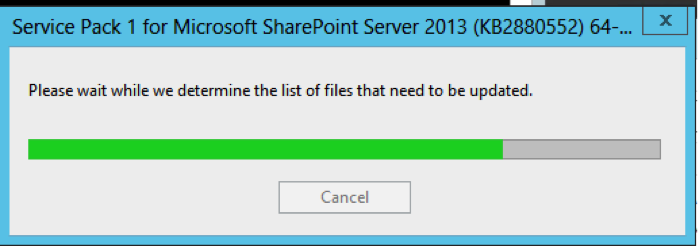
1.) Ingresamos en el sistema con la cuenta de instalación y abrimos un PowerShell como administrador para ejecutar PatchFarm.ps1


Recomendamos a los doctores aprovechar para tomar un relaxing cup of café con leche mientras se instala todo, a no ser que tengan más pacientes en lista, que deberían estar siendo atendidos, no invitamos desde aquí en absoluto a la inactividad habiendo cosas por hacer.

chaca-chaca-chaca...


chaca-chaca-chaca...


chaca-chaca-chaca...


2.) Una vez haya terminado exitosamente la instalación del parche, ejecutamos el asistente de productos y tecnologías con:

PSConfig.exe -cmd upgrade -inplace b2b -wait -force

Con esto ya habremos acabado la intervención, el post operatorio exige a nuestro paciente un leve reposo basado en el reinicio del servidor.

3.) Verificar desde la Central de Aministración que la actualización se ha llevado a cabo con éxito, desde patch installation status:


Código del script PathFarm.ps1:

<#============================================================
  //
  // Microsoft provides programming examples for illustration only,
  // without warranty either expressed or implied, including, but not
 // limited to, the implied warranties of merchantability and/or
  // fitness for a particular purpose.
  //
  // This sample assumes that you are familiar with the programming
  // language being demonstrated and the tools used to create and debug
  // procedures. Microsoft support professionals can help explain the
  // functionality of a particular procedure, but they will not modify
  // these examples to provide added functionality or construct
  // procedures to meet your specific needs. If you have limited
  // programming experience, you may want to contact a Microsoft
  // Certified Partner or the Microsoft fee-based consulting line at
  //  (800) 936-5200 .
  //
  // For more information about Microsoft Certified Partners, please
  // visit the following Microsoft Web site:
  // https://partner.microsoft.com/global/30000104 
  //
  // Author: Russ Maxwell (russmax@microsoft.com)
  //
  // ---------------------------------------------------------- #>
###########################
##Ensure Patch is Present##
###########################
$patchfile = Get-ChildItem | where{$_.Extension -eq ".exe"}
if($patchfile -eq $null)
{
  Write-Host "Unable to retrieve the file.  Exiting Script" -ForegroundColor Red
  Return
}
########################
##Stop Search Services##
########################
##Checking Search services##
$srchctr = 1
$srch4srvctr = 1
$srch5srvctr = 1
$srv4 = get-service "OSearch15"
$srv5 = get-service "SPSearchHostController"
If(($srv4.status -eq "Running") -or ($srv5.status-eq "Running"))
  {
    Write-Host "Choose 1 to Pause Search Service Application" -ForegroundColor Cyan
    Write-Host "Choose 2 to leave Search Service Application running" -ForegroundColor Cyan
    $searchappresult = Read-Host "Press 1 or 2 and hit enter"
    Write-Host
  
   if($searchappresult -eq 1)
    {
        $srchctr = 2
        Write-Host "Pausing the Search Service Application" -foregroundcolor yellow
        Write-Host "This could take a few minutes" -ForegroundColor Yellow
        $ssa = get-spenterprisesearchserviceapplication
        $ssa.pause()
    }
  
    elseif($searchappresult -eq 2)
    {
        Write-Host "Continuing without pausing the Search Service Application"
    }
    else
    {
        Write-Host "Run the script again and choose option 1 or 2" -ForegroundColor Red
        Write-Host "Exiting Script" -ForegroundColor Red
        Return
    }
  }
Write-Host "Stopping Search Services if they are running" -foregroundcolor yellow
if($srv4.status -eq "Running")
  {
    $srch4srvctr = 2
    set-service -Name "OSearch15" -startuptype Disabled
    $srv4.stop()
  }
if($srv5.status -eq "Running")
  {
    $srch5srvctr = 2
    Set-service "SPSearchHostController" -startuptype Disabled
    $srv5.stop()
  }
do
  {
    $srv6 = get-service "SPSearchHostController"
    if($srv6.status -eq "Stopped")
    {
        $yes = 1
    }
    Start-Sleep -seconds 10
  }
  until ($yes -eq 1)
Write-Host "Search Services are stopped" -foregroundcolor Green
Write-Host
#######################
##Stop Other Services##
#######################
Set-Service -Name "IISADMIN" -startuptype Disabled
Set-Service -Name "SPTimerV4" -startuptype Disabled
Write-Host "Gracefully stopping IIS W3WP Processes" -foregroundcolor yellow
Write-Host
iisreset -stop -noforce
Write-Host "Stopping Services" -foregroundcolor yellow
Write-Host
$srv2 = get-service "SPTimerV4"
  if($srv2.status -eq "Running")
  {$srv2.stop()}
Write-Host "Services are Stopped" -ForegroundColor Green
Write-Host
Write-Host
##################
##Start patching##
##################
Write-Host "Patching now keep this PowerShell window open" -ForegroundColor Magenta
Write-Host
$starttime = Get-Date
$filename = $patchfile.basename
$arg = "/passive"
Start-Process $filename $arg
Start-Sleep -seconds 20
$proc = get-process $filename
$proc.WaitForExit()
$finishtime = get-date
Write-Host
Write-Host "Patch installation complete" -foregroundcolor green
Write-Host

##################
##Start Services##
##################
Write-Host "Starting Services Backup" -foregroundcolor yellow
Set-Service -Name "SPTimerV4" -startuptype Automatic
Set-Service -Name "IISADMIN" -startuptype Automatic
##Grabbing local server and starting services##
$servername = hostname
$server = get-spserver $servername
$srv2 = get-service "SPTimerV4"
$srv2.start()
$srv3 = get-service "IISADMIN"
$srv3.start()
$srv4 = get-service "OSearch15"
$srv5 = get-service "SPSearchHostController"
###Ensuring Search Services were stopped by script before Starting"
if($srch4srvctr -eq 2)
{
    set-service -Name "OSearch15" -startuptype Automatic
    $srv4.start()
}
if($srch5srvctr -eq 2)
{
    Set-service "SPSearchHostController" -startuptype Automatic
    $srv5.start()
}
###Resuming Search Service Application if paused###
if($srchctr -eq 2)
{
    Write-Host "Resuming the Search Service Application" -foregroundcolor yellow
    $ssa = get-spenterprisesearchserviceapplication
    $ssa.resume()
}
Write-Host "Services are Started" -foregroundcolor green
Write-Host
Write-Host
Write-Host "Script Duration" -foregroundcolor yellow
Write-Host "Started: " $starttime -foregroundcolor yellow
Write-Host "Finished: " $finishtime -foregroundcolor yellow
Write-Host "Script Complete"


Referencias del presente artículo, aparte de la propia experiencia:

https://www.linkedin.com/pulse/step-by-step-cumulative-update-sharepoint-2013-dyung-ngo
http://blogs.msdn.com/b/russmax/archive/2013/04/01/why-sharepoint-2013-cumulative-update-takes-5-hours-to-install.aspx